Friday, October 20, 2023

#992 OIC3 VB invoking Process Automation with Identity Propagation

This simple example is for those who need to invoke Process from VB with identity propagation. This is a common requirement, when the person is a registered user of both apps, i.e. the pre-requisite for our VB user is that they are also a valid Process user. Ergo, the VB user needs to be added to the target OPA process, with at least the use permission. This you do in the Process Workspace --> Administration --> Roles. 


Communication is over a VB Service connection, more about that later.


My VB app is simple, so is the Process -  


The Process message payload is as follows - 


Process Automation is part of OIC3, however, you do enable it separately. 


Once enable, the instance is visible here - 


Now that we have the basics, the VB and Process apps, the next step is to create the confidential application in IDCS; this will provide us with the token that will be used when Visual Builder invokes OPA.


Step 1 - Create a confidential app in IDCS


Give the app a name - 

Click Next to add the details -

Check the following Grant Types -

  • JWT Assertion - will be used by VB
  • Refresh Token
  • Authorization Code - will be used by my Postman sanity test
I like testing things out in Postman first.


shown and set redirect url to https://my OIC3.ocp.oraclecloud.com/icsapis/agent/oauth/callback


We now need to specify the scopes - essentially setting the access level(s). 

I add the scopes for OIC(Integration) and Process.  These can be easily added - 


 Here I add the scope for OIC(Integration) - 


Now for Process - 


Note the 2 scopes here - one for process, the other for decisions. Let's include both.


The result - 


Press Next on the following screens, then press Finish. Your client id and secret are displayed.

Copy these, as you will need them later. 


Step 2 - Postman Sanity Test & Visual Builder setup

Visual Builder will communicate with OPA via a Service Connection. 

You will need the following data to define the connection - 

  • Your IDCS URL
  • Client Id / Secret
  • Sample Request Payload for your Process invoke
  • The OPA REST API to invoke
Let's start with the OPA REST API - 


The docs are available here.

As you can see we're going to use /process/api/v1/instances -

The payload will be the order data our process expect, along with the following - 


Let's test in Postman -

The Authorization setup is as follows - 

Grant Type - set to Authorization Code 

Callback URL - set to the OIC callback url, used when defining the IDCS confidential app.

Auth URL - Set to https://yourIDCS//oauth2/v1/authorize

Access Token URL - Set to https://yourIDCS//oauth2/v1/token

Client Id / Secret - set to those from your IDCS confidential app

Scope - set to https://yourOPA/process

The payload is as follows - 


Finally, the api - 

https://yourOPA/process/api/v1/instances

I now get a new access token - 


Now Send the request and check the response - it includes the following - 


Looks good, so now back to our VB app - let's add the Service Connection. 


Select - Define by Endpoint.


Click Next -

Then click on Server - 


Under Security - select User Assertion -


Add your client id and secret -


Set Scope to the process scope from the IDCS confidential app, the one you used in Postman.

Set Connection Type as shown - 

Click on the Request Tab, then select Body - add the payload you used in Postman. Click the Save Request button.


Add /instances to the URL and click Send Request -


Looks good!
You can now click Save as Example Response - then click Create to save the service connection.

Let's check out the task in the Process Workspace - 


Just before we look at invoking this from the VB application, let's talk about Backends - 


I could create a backend entry for OPA, this would include the server data - base url / security settings etc. Multiple service connections could then leverage this, saving me having to enter the server information for each connection.


Now to invoking the OPA api from the VB form - 


I will augment the Save functionality to include the OPA invoke.


I'll add it to the "success" path - 


I use the VB Call REST action and then configure it to invoke the OPA api

- make sure to add this step before the page initialisation step in the action chain  - 


Map the Request fields -


Copy the example request to the body -


You can leave the first 3 fields hardcoded - but the order payload fields need to be set to the values from the VB page - 


You can set the values as follows - 


Test - by adding a new order - 


Working fine! 

Just for your troubleshooting - What response do I get if the vb user is not an OPA user?


I now add this user to OPA, as a generic user -


I now retry the send from the VB service connection - 


 Summa Summarum

Invoking OPA from VB is easy. It doesn't matter whether VB is enabled within OIC or is provisioned standalone, it's the same modus operandi.


Tuesday, October 17, 2023

#991 OIC Healthcare


OIC 23.10 includes the first release of OIC Healthcare. Initially, this is feature flag driven, but should be generally available soon. Thanks to my colleague Steve T. - the real Healthcare SME - for his support here!


The above screenshot shows the Healthcare-> Documents page, where you can create your entries for HL7 documents, such as patient registration etc. The UI is very intuitive - 


The document standard supported is HL7V2.


The Document Versions supported range from 2.3.1 to 2.9.

Finally, the Document type list - this includes an exhaustive list of HL7 docTypes -


I will use the following in the example integration below -


Within Healthcare, you can also create your own schemas - 


These are useful when you need to deviate from the standard HL7 definitions. This is probably very much the case, as with B2B. There is a standard but many users have their own custom segments/ fields etc. 

Here I have created a schema for Patient Registration based on the standard ADT_A04 definition, note how easy it is to add custom entries etc.


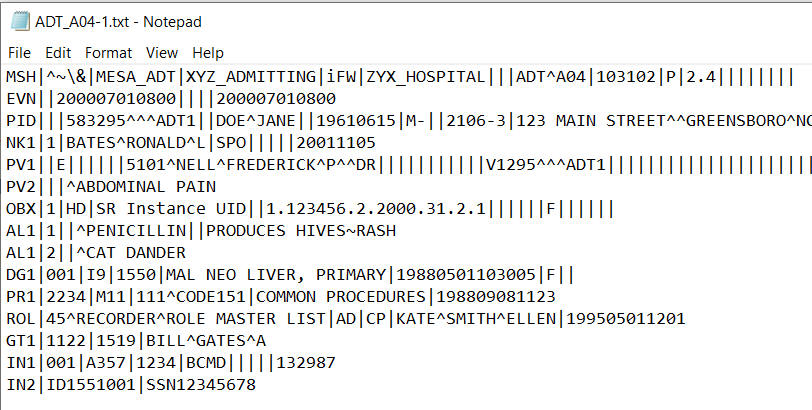
Maybe now is a good point to look at the message structure - I'm new to HL7 but there is plenty of collateral out there on how these messages are structured.


I will not go through each individual fields but let's look at the segments - 

MSH - Header - this contains sender and receiver information, dateTime, message type etc.

EVN - Event Type
PID - Patient Identification 
NK1 - Next of kin
PV1 - Patient Visit
PV2 - Patient Visit (Additional Info) 
OBX - Observation / Result
AL1 - Allergy Information 
DG1 - Diagnosis Information
PR1 - Procedures
ROL - Role (from a personnel perspective e.g. Recorder/Registrar
GT1 - Guarantor information (from a financial perspective)
IN1... - Insurance information

It's good to have an appreciation of the document, before we start processing it.

Now to the OIC Healthcare action - this provides the following functionality - 


Let's go through these operations, pardon the pun.

Match and Translate inbound message - this is the inbound pre-processor, so to speak. It validates if the incoming document adheres to the type specified, e.g. is this a valid ADT_A04? 

Convert message reference to document - One of the outputs of the previous operation is a healthcare message reference. This convert operation takes that reference and extracts the payload data into xml format.

Translate to outbound message - this converts the xml format into HL7 for outbound processing.

My demo will be an inbound use case so I will be using the first 2 operations.
The integration is simple - a scheduled integration that downloads HL7 files from the OIC file server, via the ftp adapter.


ftp download action is configured as follows - 


Healthcare - match and translate configured as follows - 


The output of this action is shown below; as you can see, it includes the healthcare message reference.


The input to this action is the File Reference from the FTP Download action -


The next action is Healthcare - Convert message reference to document - it is configured as follows - 

The input is the healthcare-message-reference from the previous Healthcare action


Let's test this!

I check the output of the convert action -


One would probably adopt the following pattern, when implementing such integrations -

Integration 1 - Dispatcher Router (match and translate)

Integration 2 - Message Processor - (Convert message reference to document + downstream processing).  

Summa Summarum

OIC Healthcare is another compelling offering within the OIC toolkit. As you have seen, OIC supports HL7 today. We support FHIR (Fast Healthcare Interoperability Resources) via the OIC REST adapter. OIC also ships an MLLP adapter - 


The Minimal Lower Layer Protocol is commonly used in HL7 document exchanges.  
For those interested, Steve has created a more detailed post here. So check it out!


Thursday, October 12, 2023

#990 - OIC Projects - RBAC

Here I look at the OIC Monitoring Role in respect of Projects RBAC. To this end, I have created a new OCI user and assigned them the OIC Service Monitor role - 


The user has been assigned the ServiceMonitor role. I see the following, when I login to OIC - 


At this level, I can monitor all integration flows, outside of projects.


However, I also need to be able to monitor integrations in a project - AA-ERP-Project -


The project has the following RBAC permissions - 


I try to access this project as my ServiceMonitor user - Niall MacCumascaigh - 


I now allow the Niall MacCumascaigh user to monitor the project -


Now I can monitor - note, the Design and Deploy buttons are disabled -


Summary

The table stakes for monitoring projects flows is the ServiceMonitor role. This will also give the user the ability to monitor all flows outside of projects. 


Tuesday, October 10, 2023

#989 OIC 23.10 - OIC Events Enhancements


The 23.10 release includes the following enhancements - 

  • Ability to retain subscription on "subscriber" integration deactivation
  • Large Payload support

Retain Subscription

In 23.08 you see the following, when you click on deactivating a OIC Events "subscriber" integration - 


 As you can see from the initial screenshot, 23.10 allows me to retain the subscription. Let's check it out -


Here are my 2 integrations - pub & sub.

I run the publish integration - 


I check in Observability - 


I now deactivate the "sub" integration -


Note: I do NOT check the Delete event subscription box.

I now publish the new orders 3, 4 & 5.


Checking in Observability -> Subscriptions, I see 3 retained events -


Let's reactivate the "subscriber" integration - 


check in Observability --> Instances - the 3 orders have been processed -


This retention feature currently applies only to events created in 23.10 +.


Large Payload Support

The payload size limit for the event is now dependent on the limit of the inbound (trigger) adapter.  

Monday, October 9, 2023

#988 OIC3 23.10 - xsl:for-each-group


Here is a simple example, in which I will read the following file - 


The goal is to parse this file and extract distinct band names. 

Ergo, grouping will be done based on band name e.g. Jethro Tull.

Again, the output file should just include distinct band names, in my case, the following - Jethro Tull, Horslips, Pink Floyd.


The input file, albums.xml, will be read via the FTP adapter, I then write the output file, which will have the following structure - 


for-each-group will be used in the mapper, so here is the map definition - 


Here are the settings - 

for-each-group is set to album
group-by is set to @band
name is set to band

I run the integration and check the output file -