Showing posts with label 23.02 Release. Show all posts

Wednesday, February 15, 2023

#953 OIC 23.02 Release --> New Features II

Part two covers -

  • Improved Monitoring
  • File Server
  • B2B
Connectivity and adapters have been covered by my colleague here

Improved Monitoring

The previous post detailed the Project specific Observability in OIC 3. Here's a quick recap - 


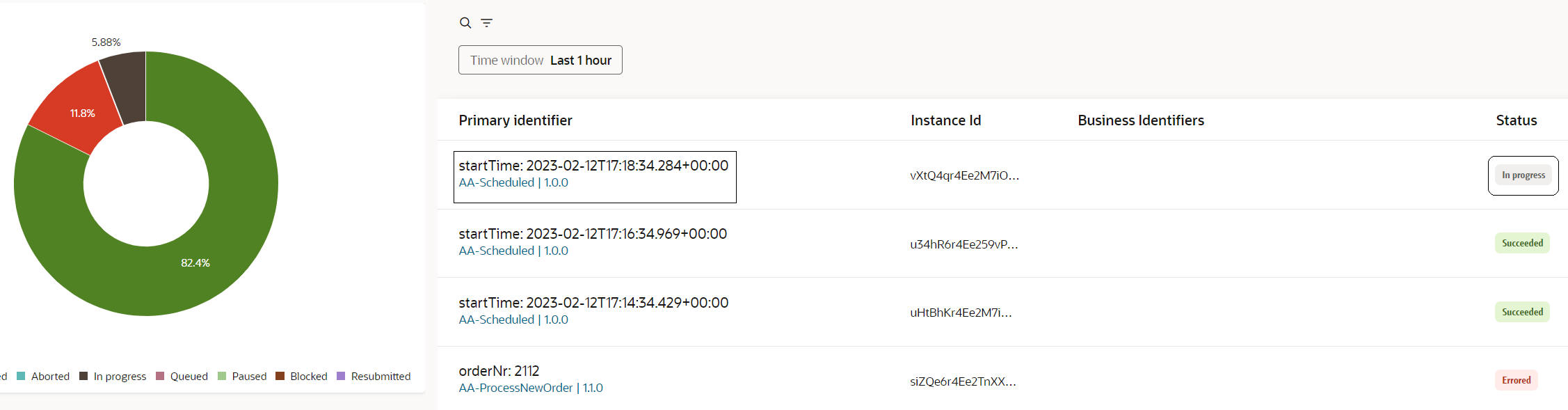
Clicking the Observe button in your Project shows you the monitoring data for integrations in that project. Note the doughnut graphic, giving you a succinct breakdown of the status of those flows.

So now to Observability per se - 


Before looking at the dashboard in more detail, let's check out the Integrations


Note, the default view above shows all integrations, including those from projects. 
I can also just view integration flows of a specific project, via the new Project filter -


Now to the Errors screen - 


Note, the project errors are included by default. I can also add a Project filter here - 


Now back to the Dashboard - I'm using an OIC 3 instance with a bit more throughput here - Check out the new Connections with Errors widget

I also see the list of integrations using this connection, in this case, I only have 1 using this Zendesk connection  -


File Server

File Server now supports additional algorithms. These algorithms are available in the Signature Algorithms field on the File Server Settings page. Previously, only the ssa-rsa algorithm was available previously.


B2B

B2B is now a part of OIC 3 - it is essentially the same functionality as in OIC Gen2.
Here is a simple example - 

Here I have a Trading Partner sending me X12 P850 documents (Purchase Orders).
So what are the steps?

Step 1 - Define the Host - 


Some of these identifiers will be used in the documents sent from the Trading Partner.

Step 2 - Define Trading Partners -


Commiskey_Inc is my trading partner - let's look at the configuration - 


Some of these identifiers will be used in the documents sent from the Trading Partner.

Step 3 - Define Transports -

In other words how will these P850 docs be transported. In my case, via FTP. 


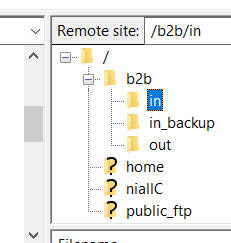
Here I specify which FTP connection I will be using. I also enter the inbound ftp server directory I will use - in my case /b2b/in. So that's all I need for receiving docs.


The Transport definition continues with the sending information - note the ftp directory I will use is /b2b/out. I also set a format for the output files written.

The next section contains the auto-generated FTP Receive and Send integrations. Here you just enter a prefix and OIC does the rest. We will look at these integrations later. 

The Transport then needs to be deployed - 

I see the following menu options, as this transport has already been deployed - 


Step 4 Define Agreements - 

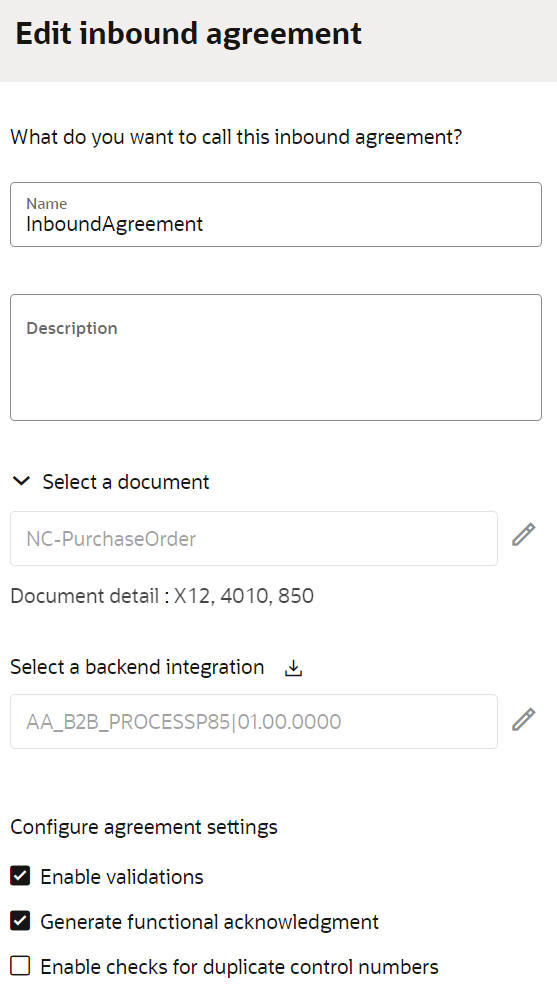
Transport sorted, but what will we be transporting? Yes, you got it -  X12 P850 PurchaseOrder docs. This is inbound, i.e. from Trading Partner to us (Host).


Note this refers to a document NC-PurchaseOrder - this I have already created via the B2B -> Documents menu option -


That's it - now to the integrations generated and the backend integration specified in the Agreements definition.


I begin with the auto-generated Receive integration - AA-B2B-CommiskeyInc FTP Receive

Here is the top level flow - 


First action is to list the files in the /b2b/in directory on my FTP server. Remember, I specified this directory, when creating the transport.

I expand the For each File loop - First step here is to download the file - 


Next Steps are as follows - 


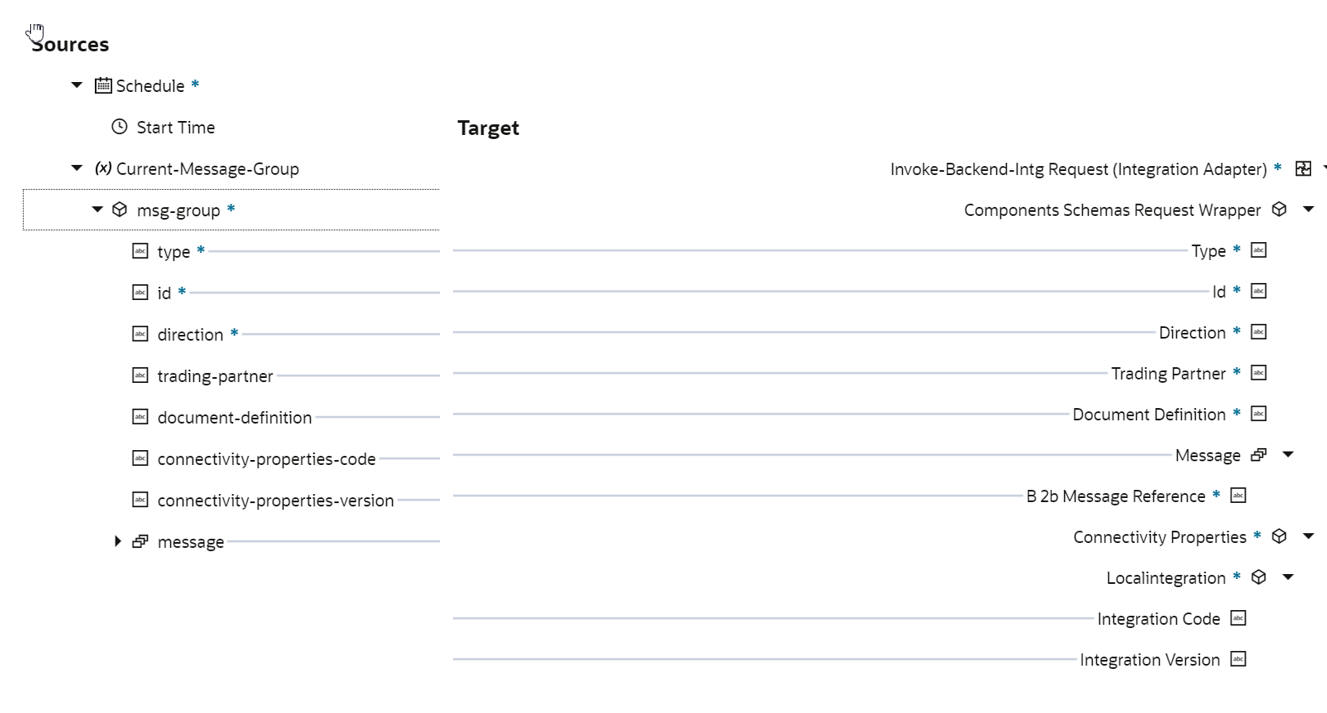
B2B Translate - validates the incoming message and, if ok, invoke the backend integration for further message processing - we will look at that integration soon.


Here's the mapping - 


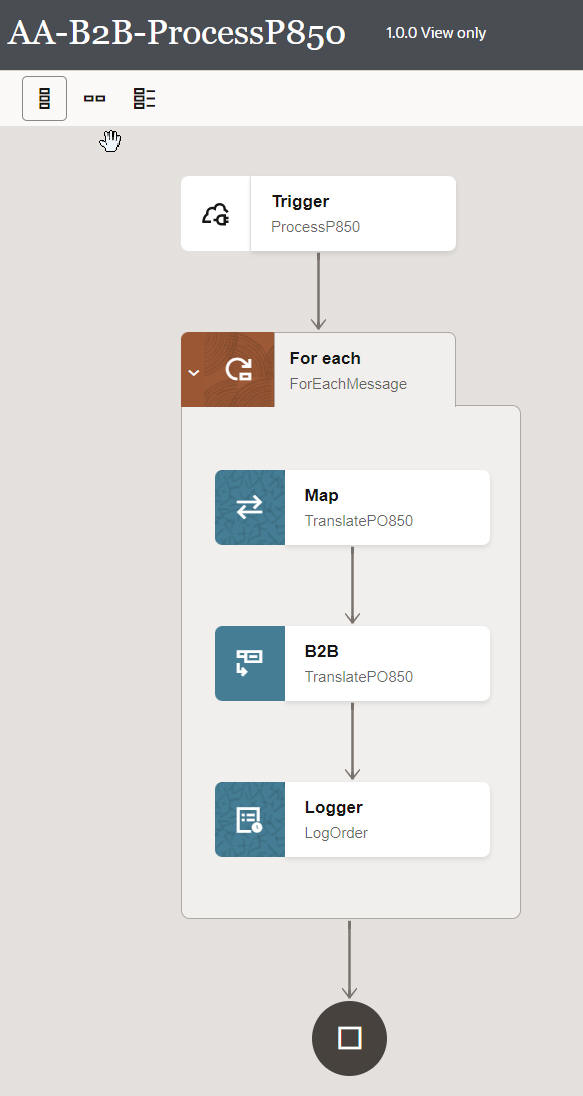
Now to the backend integration, which I knocked up in a couple of minutes - 


Here's the request payload I used - 

{
  "type" : "PO",
  "id" : "12345",
  "direction" : "INBOUND",
  "trading-partner" : "Acme",
  "document-definition" : "PO_850",
  "message" : [ {
    "b2b-message-reference" : "0AC400D117503A8246000000347849EB"
  }, {
    "b2b-message-reference" : "0AC400D117503A8246000000347849EA"
  } ]
}

Each Message is fetched and converted to XML -


Note the For Loop, iterating over the messages received. The only action I add here is a Logger action - 

This simply logs one of the P850 segment values - 


Now to testing - here is my ftp directory structure - 


Here is my test P850 document - 
ISA*00*          *00*          *ZZ*Commiskey_Inc  *ZZ*My Company     *230214*1204*U*00401*000000027*0*P*:~
GS*PO*My Company*Commiskey_Inc*20230214*1204*1027*X*004010~
ST*850*1027~
BEG*00*NE*MyOrder-1**20210614~CUR*2L*US *0001~
PO1*Bearing*30*A8*3~
PO1*LCD-015B*1*AE*129~
PO1*23A011*5*A8*11.6~
CTT*3*277~
SE*8*1027~
GE*1*1027~
IEA*1*000000027~

The value in bold is BEG03 - i.e. 3rd field in the BEG segment.

Let's test!


I run the Receive integration - 


I click on the link to view the activity stream of the backend integration - 


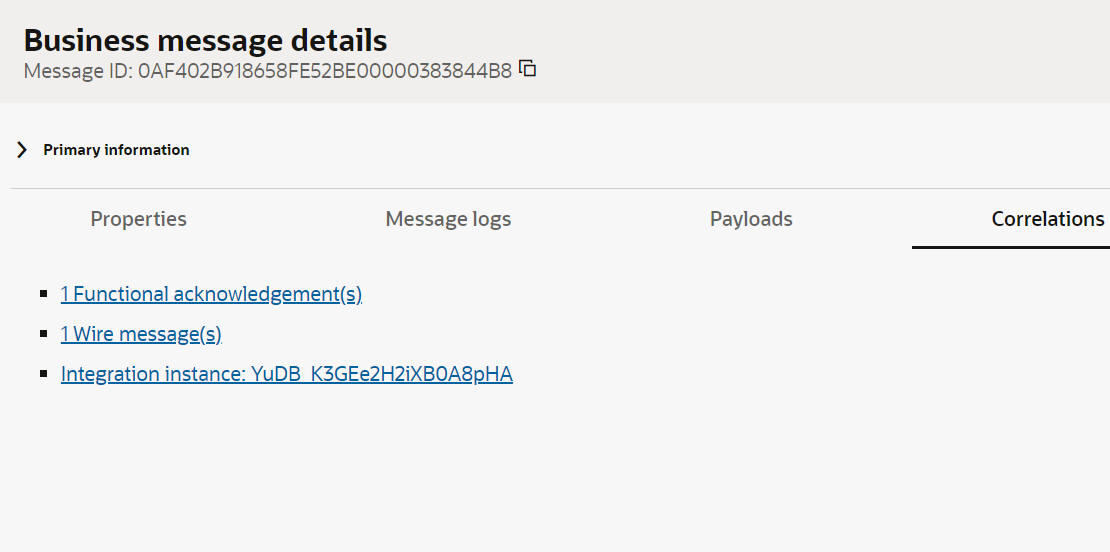
B2B Message Monitoring -


Now let's look at the raw messages -


Sunday, February 12, 2023

#951 OIC 23.02 Release --> New Features Part I


23.02 brings a rich set of new features to you. So, without further ado, let's look at some of them! This post covers the following - 

1. Parallel Processing
2. Certificate UI support for uploading signed key type certificates
3. New Factory api - /usage
4. OIC Projects - Deploy and Observe 


Parallel Processing 

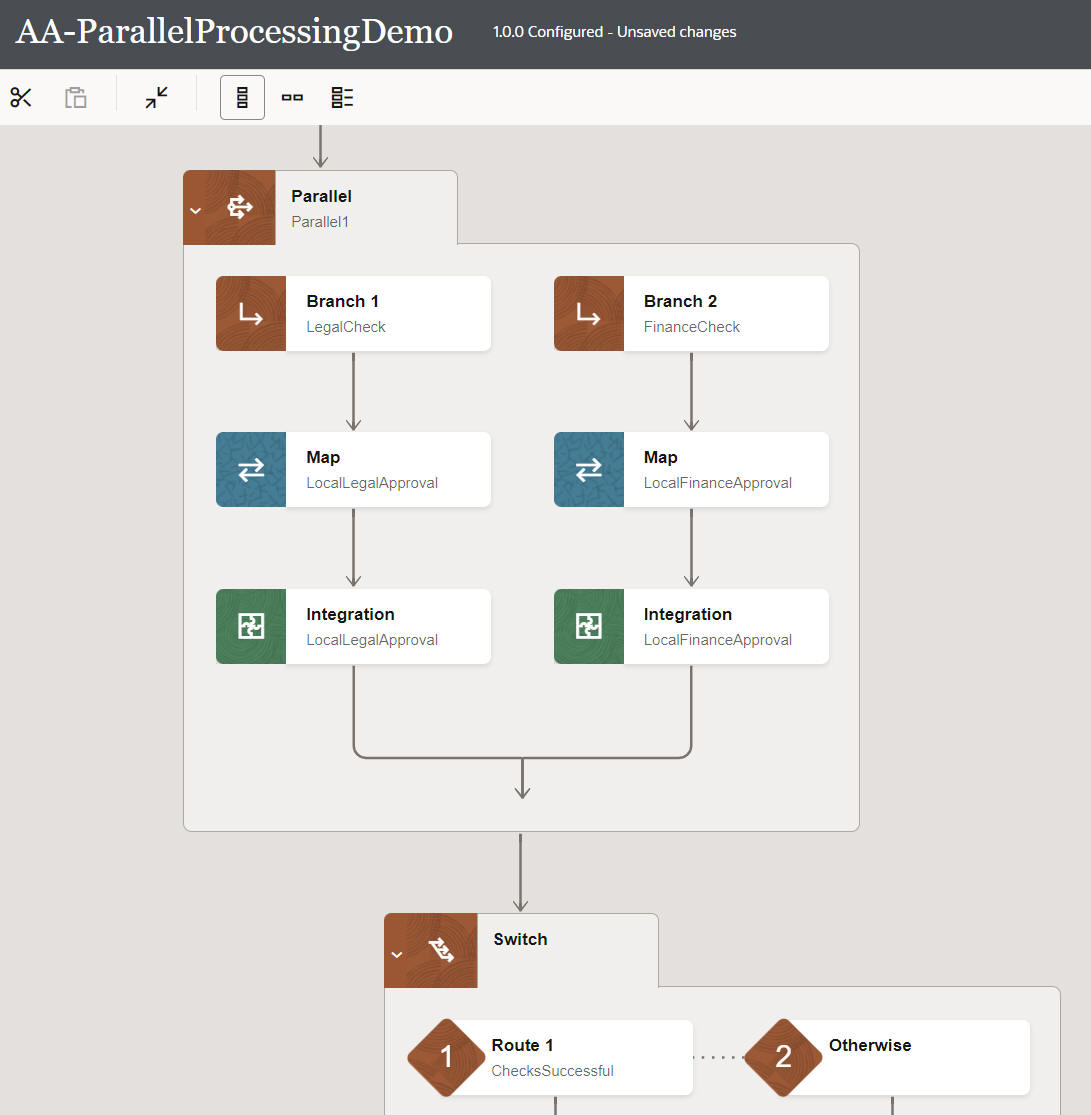
Parallel Processing was introduced in OIC 3 22.12.1 Release. The initial release supported Map and Invoke actions in the branches.


23.02 adds more actions - 


As you can see, one can now add - Logger, Notification, JavaScript, Scope and Switch actions to a branch. 

Please note - one can create up to 5 branches in a Parallel action. 


Certificate UI support for uploading signed key type certificates


This is useful when you must invoke a service that does not view an OAuth client secret as secure. For these use cases, JWT assertions can be used to authenticate the client application without the use of a client secret. Oracle Integration 3 uses the signing key you upload to generate the JWT assertion.

OIC Factory API /usage

This api is being made public in 23.02 - so what does it give you?

Essentially, this API retrieves information about your integration resources and how they are used. It covers lookups (DVMs), application instances, integrations, integration designs, packages, messages, agent, adapters, API libraries, message system, and schedules.

Let's check it out in Postman - 

The url - https://design.integration.yourRegion.ocp.oraclecloud.com/ic/api/integration/v1/usage?integrationInstance=yourOIC3Instance

The response - 

{
    "adapterMetrics": {
        "adapterCount": {
            "adapterDisplayNameMap": {},
            "marketPlaceAdapterCount"0,
            "preInstalledAdapterCount"77,
            "privateAdapterCount"0,
            "totalAdapterCount"77
        }
    },
    "agentMetrics": {
        "agentsByGroup": {
            "AA-Agent-Group"1
        },
        "countAgentGroups"1,
        "countConnAgents"1,
        "countExecAgents"0,
        "numberOfDownAgents"1,
        "totalAgents"1
    },
    "apiLibraryUsageMetrics": {
        "configured"0,
        "inProgress"0,
        "total"0
    },
    "applicationInstanceUsageMetrics": {
        "active"4,
        "configured"4,
        "inProgress"0,
        "total"4,
        "typeNumbers": {
            "QuickBooks"1,
            "REST"2,
            "Mailchimp"1
        },
        "typeNumbersArray": [
            {
                "Mailchimp"1
            },
            {
                "QuickBooks"1
            },
            {
                "REST"2
            }
        ],
        "used"4
    },
    "domainValueMapUsageMetrics": {
        "numberInUse"0,
        "total"1
    },
    "integrationDesignMetrics": {
        "styles": [
            {
                "name""Template",
                "patterns": [],
                "total"0
            },
            {
                "name""Orchestration",
                "patterns": [
                    {
                        "active"1,
                        "configured"0,
                        "draft"0,
                        "failed"0,
                        "name""Scheduled",
                        "total"1
                    },
                    {
                        "active"5,
                        "configured"2,
                        "draft"0,
                        "failed"0,
                        "name""Map Data",
                        "total"7
                    }
                ],
                "total"8
            }
        ]
    },
    "integrationStateMetrics": {
        "activationInProgressCount"0,
        "activeIntegrationCount"6,
        "totalCount"6
    },
    "integrationUsageMetrics": {
        "activated"6,
        "activeAppInstance"4,
        "activedMEPs": {
            "App Driven Orchestration"7,
            "Scheduled Orchestration"1
        },
        "configured"2,
        "failedActivation"0,
        "inProgress"0,
        "integrationsByAdapters": {
            "QuickBooks"3,
            "REST"7,
            "Mailchimp"1
        },
        "integrationsByAdaptersArray": [
            {
                "Mailchimp"1
            },
            {
                "QuickBooks"3
            },
            {
                "REST"7
            }
        ],
        "intgStyles": {
            "Orchestration"8
        },
        "numberOfMEPTypes"2,
        "scheduledIntegrations": {
            "running"1,
            "stopped"0
        },
        "total"8
    },
    "links": [
        {
            "href""https://...",
            "rel""self"
        },
        {
            "href""https://...
           "rel""canonical"
        }
    ],
    "messageMetrics": {
        "aborted"0,
        "debugInstances"0,
        "failed"0,
        "success"1,
        "total"1
    },
    "messageSystemMetrics": {
        "jmscount"0,
        "omscount"0
    },
    "packageUsageMetrics": {
        "businessAccelerator"0,
        "developed"0,
        "nonPreBuilt"0,
        "preBuilt"0,
        "recipe"0,
        "technicalAccelerator"0,
        "total"0
    },
    "scheduleUsageMetrics": {
        "active"0,
        "inUse"0,
        "stopped"0,
        "total"0
    }
}

The response above is from a test instance I have, which doesn't, as yet, have much content. But I hope you see the value of this api.

OIC Projects


OIC 3 22.12 brought the first release of Projects. Check out my original blog post on Projects here.This release adds more functionality in respect of deployment. Deployments are at integration level. They can include some or all of the integrations integrations in the project. For example, deployment1 could include v1 of integrations A and B; deployment2 could include v1 of integration A and v1.1 of integration B. Deployments can be activated, deactivated and exported.

But let's recap somewhat - what are the benefits of using a project instead of just creating my integrations in the usual way?

1. Organization - ability to organize all related OIC artifacts - integrations, connections, lookups and libraries in one place e.g. my OrderProcessing Project, my HCM onboarding projects. 

2. Isolation - project OIC artifacts are not visible outside of the project.

3. Inline development enables quicker development of OIC artifacts

4. Project specific deployment

5. Project specific monitoring

So let's check out what's new in 23.02 - 


Let's begin with the 3 buttons - 


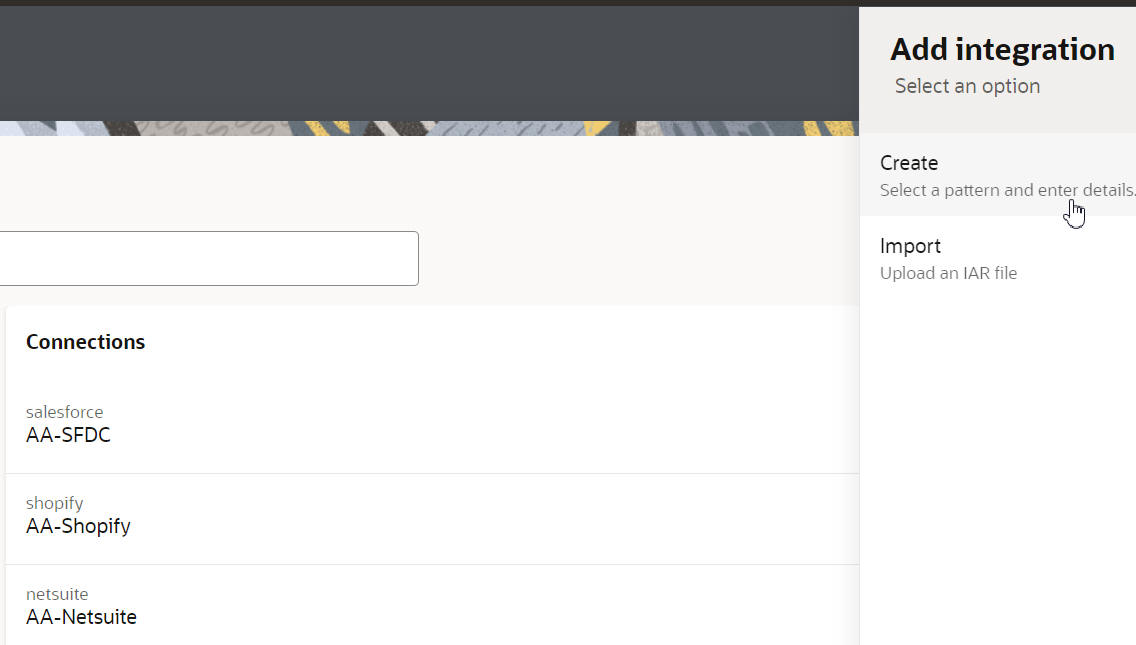
Design your artifacts inline - via the tray control on the right -


Now to Deployment - imagine this is my development OIC3 instance - 


Deployments are for integrations, so let's see which ones we have in this project -


Note, I have 2 versions of the integration - AA-ProcessNewOrder -

Back to the Deployments screen - I create a new deployment and include 3 integrations - 


I now export the deployment - 


Then I import this to another OIC 3 environment, my OIC 3 Test instance - 


Target instance has just the 3 integrations in the project - 


Back in my Development instance - I complete the development of version 1.1 of the integration AA-ProcessNewOrder.

Now I create a new Deployment - Orders-V2 that will include this version of the integration as well as version 1.0 of the other 2 integrations.


I import into the test environment - 

The project there now includes the 1.1. version of that integration -


I hope that succinctly explains the deployment functionality, now to Observe - this gives us a project specific view of instance tracking -

I invoke a couple of integrations, so we'll have something to look at - 


Let's check out the Doughnut - yes - that's the proper way to spell it - 


Note the categorization - btw. I also invoked a scheduled job which contains a 2 minute WAIT. I ran this a couple of times, one straight after the other. This is why we see the blocked segment.  

2 minutes later and this segment has decreased in size -