Showing posts with label SFDC. Show all posts

Friday, September 1, 2023

#985 Data Sync Strategies with the OIC SFDC Adapter

Back to the use case from the previous post - syncing users between SFDC and downstream apps. There are multiple approaches to getting the users from SFDC.


Scheduled Integration

This approach is useful if the business use case allows for changed user data to be collected on a regular basis. This could be daily, hourly etc. i.e. not real time.

1. Scheduled job using SOQL to retrieve users that have been changed since the last run. The field - LastModifiedDate - can be used or even the SOQL SystemModStamp field e.g. 

SELECT AboutMe, AccountId,Alias, BadgeText, BannerPhotoUrl, CallCenterId, City, CommunityNickname, CompanyName, ContactId, Country, Department,Division,Email, EmailEncodingKey, EmployeeNumber,Extension,Fax, FirstName,IndividualId,IsActive,  LanguageLocaleKey,LastLoginDate, LastName, ManagerId, MobilePhone, Phone, PostalCode, ProfileId,SenderEmail, SenderName, Signature, State,Street,Title, Username, UserRoleId, UserType, LastModifiedDate  
FROM USER
WHERE SystemModStamp >= LAST_N_DAYS:1

LAST_N_DAYS:1 - gives me any changes from yesterday.

I test this query in the adapter wizard - only Julius Martov, the user I was working on yesterday is returned.


I can, of course, add an integration parameter - 


and use this in the query - 


SOQL is - 

SELECT AboutMe, AccountId,Alias, BadgeText, BannerPhotoUrl, CallCenterId, City, CommunityNickname, CompanyName, ContactId, Country, Department,Division,Email, EmailEncodingKey, EmployeeNumber,Extension,Fax, FirstName,IndividualId,IsActive,  LanguageLocaleKey,LastLoginDate, LastName, ManagerId, MobilePhone, Phone, PostalCode, ProfileId,SenderEmail, SenderName, Signature, State,Street,Title, Username, UserRoleId, UserType, LastModifiedDate   FROM USER WHERE LastModifiedDate >= &dateLastRun

The query parameter appears in the mapper and can be set to p_dateLastRun.


Final step in the integration would be to update p_dateLastRun.


App Driven Integration

This is appropriate for near real-time requirements. In this case, an event in SFDC will trigger the execution of an integration in OIC. The SFDC adapter supports the following Trigger capabilities - 


Outbound Messaging

Essentially send a message to a service when a record is created/updated in SFDC. Let's implement this for the User business object - 

The adapter in OIC tells us what to do -

So off to SFDC...


I just select a couple of the User object fields. Also note the dummy url I set for the Endpoint URL. This will be replaced later.


I now add a workflow rule to ensure the message is only sent on User update - 


 I add rule criteria - e.g. only fire if country = "Ireland" etc.


I click Add Workflow Action -


The Outbound Message definition has been updated accordingly - 


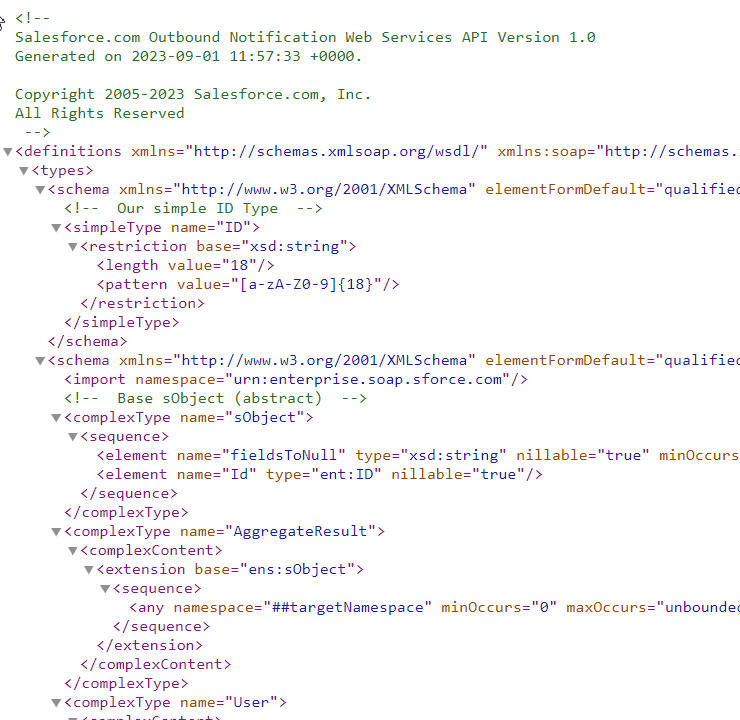
I retrieve the wsdl, this will be required by the integration trigger configuration - 


I save this file locally - 


Back in OIC, I upload the wsdl to the trigger - 


The adapter configuration is completed and I'm advised of the next steps -


I just add a Log action so I can test immediately -


I activate and pickup the endpoint url - 

I replace the dummy url I set for the Outbound Message in SFDC - 


I activate the rule, then change the alias for user - Julius Martov - 

The OIC integration is triggered - 

Streaming API

Streaming api is probably the way to go when implementing push from SFDC. According to Salesforce - Streaming API enables streaming of events using push technology and provides a subscription mechanism for receiving events in near real time

Check out my post here for a step by step description on how to implement such - 


Monday, August 28, 2023

#983 SFDC User Sync with OIC and other things SFDC adapter

Simple use case here - users created in SFDC are pushed to a downstream app. If a user is deleted/deactivated in the app, the SFDC pendant needs to be deactivated.

But this post will cover more features of the adapter, including use of the SFDC Bulk API - however, you have to use the Resource Owner Password Credentials security policy or Authorization Code Credentials in order to use V2 of the SFDC Bulk API.


I take this as an opportunity to check out this security policy - 


For ROPC, I will need the SFDC client id / secret. 

This is how I get such - 
I begin by creating a new Connected App in SFDC - 


The callback url has the following format - https://hostname from EndpointURL/icsapis/agent/oauth/callback

Now to the scopes - essentially specifying what the app will be allowed to do in SFDC.

I just give full access, at this stage - 


I click Save and then - 


Now back to the connection definition in OIC - I use the key and secret.


So why would I use Resource Owner Password Credentials? Again back to us wanting to use v2 of the SFDC Bulk API.

Here is the difference, compared to Salesforce Username Password Policy

Actions available are the same - 


but let's check out the Bulk Data Operations
here are the options - Bulk v2.0 will be used later on in this post.


Compare this to Salesforce Username Password Policy - 


Great that we got that started. The next section details a simple example of updating an SFDC user. Essentially, I retrieve the user using SOQL and update it via the adapter CRUD functionality. Net, net a simple select and update.

Updating User in SFDC

So t the simple user update - this can be done easily using the OIC adapter for SFDC - 

In the following sample, I retrieve active users from SFDC - one of these, Julius Martov, will be updated -


As you can see, Julius is active - 


Here is the simple integration flow - 


GetSFDCUsers is configured with the following SOQL - 


SELECT ID, CommunityNickname, EMAIL, FirstName, LastName, IsActive from User

Note the testing capabilities of the adapter wizard - 


The Switch action filters out the Mencheviks and sets them to deactivated - 


I also set the alias, just for the sake of it.

The Active flag is set as follows - 


Let's test it out - 


Validate in SFDC -

Julius is now known informally as the mart, and yes, the user has been deactivated.


Now let's do the same using the SFDC Bulk api v2.

Updating User in SFDC using Bulk API

Now to the Bulk API implementation -  The ROPC based connection I created earlier, will be used.
Bulk api is essentially asynchronous file upload. My first challenge was getting the correct file format for SFDC Users. In the end, I did an export, selecting only the User object - 


 Per default, include all data is checked. I de-selected this and just select User - 


The exported file is as follows - 

I make one change to the file, setting alias to "the martian".

This will now be my input file for bulk load. I copy this to the OIC File Server -


Now to the upload integration - 


Here I read the file using the ftp adapter, then invoke the bulk load via the SFDC adapter. The latter is configured as follows - 


I map a couple of fields - ID, Alias, IsActive etc.
I then add another Bulk API invoke via the adapter - Final Batch - indicating I have no more files to process. SFDC Bulk API has a size limit on files, so you could end up having multiple input files, hence FinalJob


I run a test - and check in SFDC -


Looks like we have an issue, so let's create another integration to check out the error.


Simple logic here, we invoke the SFDC bulk api - getFailedRecords - this returns the error(s) and data as a .csv file. This file is stored in the OIC VFS (virtual file system), hence the next action being Stage File - List Files. Then each error file is written to the OIC File Server via the ftp adapter.

The SFDC Invoke is configured as follows - 


Let's try it out - 


I check out the ftp directory - 


I check out the error.csv file - 


Ok, so Alias is limited to 8 characters,
I'll amend it to Jmart in the input file and reload.


I check out the user in SFDC - 


I just have to set the active value in the input file to 0, in order to deactivate the user.