Friday, December 16, 2022

#942 OIC 22.12 Release - New Features --> PostgreSQL Adapter


I just installed PostgreSQL and created my database and first table - orders - 


Just in case you're wondering - the text is not as Gaeilge, sondern Deutsch.

Ok, I have the table, let's create the connection in OIC.

I will also need a connectivity agent installed to make the magic happen.

I download the agent and install it. 22.12 makes the agent configuration very easy - 


This gives me the complete InstallerProfile.cfg, complete with OAuth setup. 

The Connection definition is simple - 


I also specify the Agent Group - 


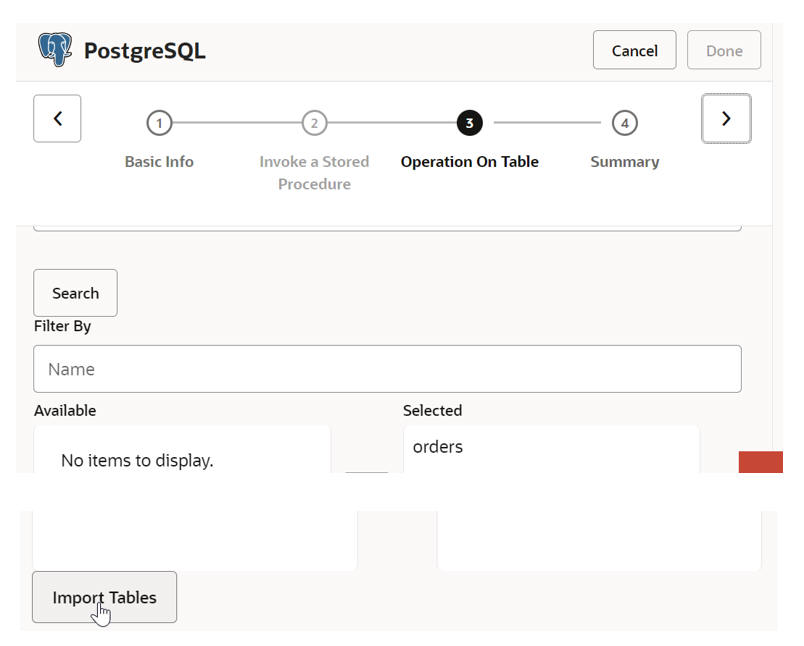
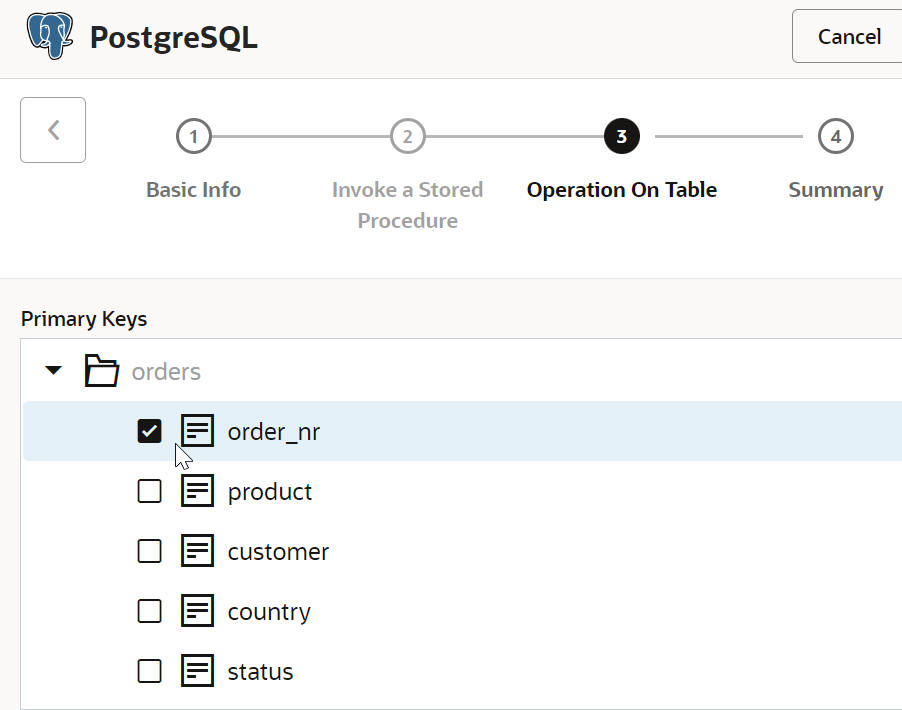
Now to leveraging the connection in an integration - I create a new integration with a REST trigger - payload is an order. I drop the PostgreSQL connection onto the canvas - 


I do the mapping - hardcoding status to approved -


Activate the integration and run - 


I validate in PostgreSQL - 


#941 OIC 22.12 Release New Features post on blogs.oracle.com


Check out my post here

Thursday, December 15, 2022

#940 OIC 22.12 Release - New Features --> Projects


A project in OIC consists of all of the artifacts you need to implement an integration or set of integrations. Imagine you have many integration requirements around order processing. You could create an integration project for such and it would contain all of the integrations, connections, lookups, and libraries you need to implement your order processing use case(s). The project itself is self contained and can be managed and monitored independently.

So what's the big value add of Projects?

1. Allows one to organize your integrations and related artifacts. This greatly eases manageability in OIC.

2. Projects provide us with our own slice of OIC. You can create, run and monitor your integrations within the context of the project; a definite plus in respect of developer productivity.

So without further ado, let's kick the tyres - this is what I see when I create my project - 


There are also sections for lookups and libraries - 


I create my assets inline - here's what I see when I click the Integrations Add button - 


so off I go and create my integration artifacts, beginning with Connections


I create a lookup to hold values such as my Netsuite Subsidiary Id etc. I also import a useful JS library.


Now to a couple of integrations - 

I have a simple app driven integration that creates customers in Netsuite - 

Note: I only see the project connections in the integration canvas - I did mention self-contained. 


The Target Netsuite subsidiary id will be filled by a lookup value - 


I only see Project Lookups - in my case, the OrdersLookup.


You get the idea - self-contained!

The Integration menu is as follows - 


I also have the Activate option at Project level - think of a global activate/deactivate option.


Activation requires a project label, so let's look at them - think of project labels as a way of organizing your integrations within the project. I have only 3 integrations, but there is no limit to what a project can contain (apart from the global 700 active integrations limit per OIC instance). I can create a project level and assign that label to certain integrations. I can then do a project level activation based on project labels. Here's my label for Netsuite integrations - 


I add the Netsuite integration to the label - 


I now click the Project level Activate button again - 


 Let's run the Netsuite integration - 


Back in the Project UI -  I click on the Observe button


I only see the instance(s) from my project -


Clicking on Design brings me back to the Project UI - 


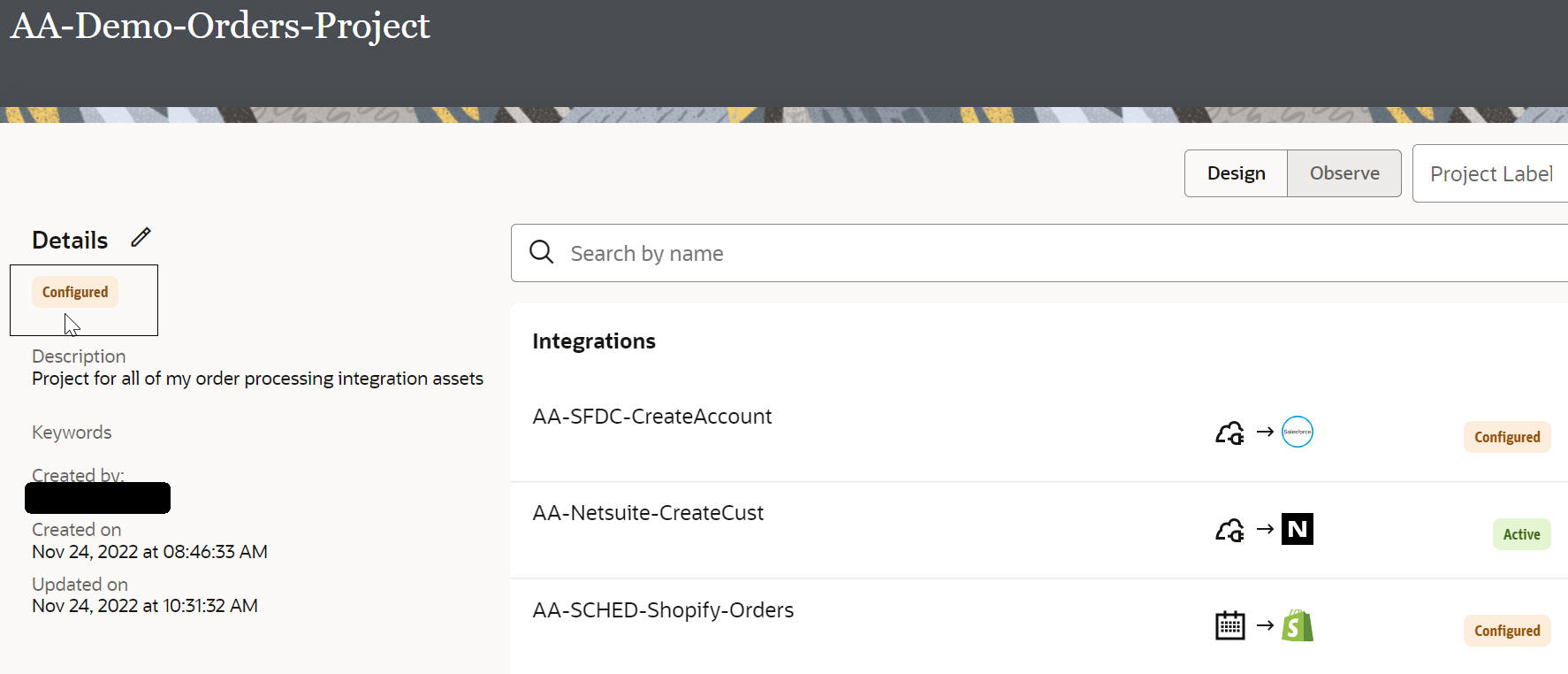
The Project itself has its own lifecycle - note it remains in draft state until all integrations have been configured -


I now complete the SFDC integration -


All Integrations are now configured - project is also set to configured.

I deactivate the Netsuite integration -


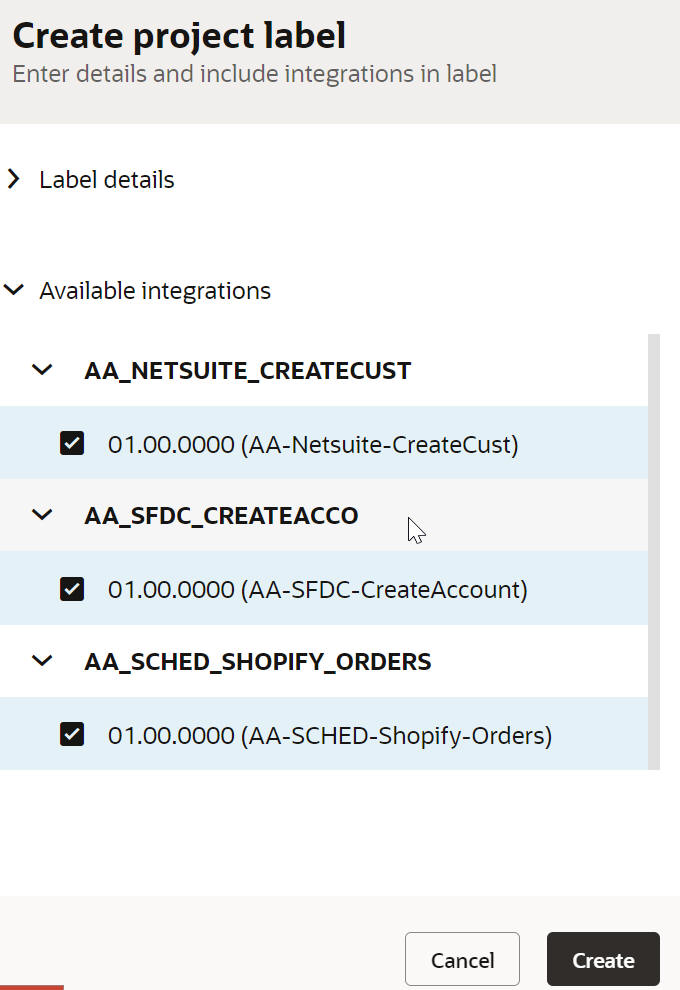
and create a new project label - OrdersProject - adding all integrations to it.


I can then activate at Project level -


More comprehensive label management is planned for our 223.02 OIC 3 release.


That was a quick tour of the new Projects feature coming with OIC 3 22.12 release. Naturally, you can continue creating your integrations etc. outside of a project; however, it's a great value-add in respect of organizing and isolating your integration artifacts. 


Tuesday, November 22, 2022

#939 OIC -> Working with the AdobeSign Adapter Part II

Carrying on from the previous post - 

Multiple Signers


first area I want to cover is multiple signers.
I try this out in Postman to check the proper input payload format - 

{
   "documentCreationInfo": {
       "signatureType""ESIGN",
       "recipientSetInfos": [
           {
               "recipientSetMemberInfos": [
                   {
                       "email""signer1@gmail.com"
                   },
                    {
                       "email""signer2@gmail.com"
                   }
               ],
               "recipientSetRole""SIGNER"
           }
        ],
       "signatureFlow""SENDER_SIGNATURE_NOT_REQUIRED",
       "message""Please Sign this from us!",
       "fileInfos": [
           {
               "transientDocumentId""3AAABLblqZhAyspx613JK3tJq6cUmD-dKzXZm95pfWOY_wkXEVnuy4aXg3JLnPnPCOGjkMnQfnvl7jObWlKB81fS0_vwZiYgq1J-zMa9KYxuE0THz7JZpVflhnKlV9lcZmtZnNwMYELmg_dW4MkjTD8E04Y-bu_mQolAB_Pbjbe0c7gJouPEOKYr6MVinoC0PTl7IyqjXor45xtXDqt3iO6VIezm_bt0ZtQBCTzfz530wv-innjXk8ItuAJY_EXqVAqh-a_xMROmmo3r4r3nsDoYSUvYuL5XE8OlA8Zr4VpQ3hIAxmJ7Yy7LlMnKPG1ZJFeqRonntSlP-kyYIlts-8J__AI2HQtI3"
           }
       ],
       "name""agreementNewEmpContract"
   },
   "options": {
        "noChrome"true,
        "authoringRequested"false,
        "autoLoginUser"true
}
}

So now I know what I need to re-create in OIC -

My trigger request is now as follows - 


The mapping for SendAgreement is as follows -


Checking on Agreement Status

So the document is now out for signing. You want to take the next steps, once all signers have done the necessary. First step is to check agreement status - here is the basic OIC scheduled integration flow for such - 


The AdobeSign Invoke is configured as follows - 


As you can see, I am retrieving a list of agreements and then checking the status of each. I could, of course, use the Get Agreement Status operation, if I was only interested in a specific agreement. 

Get Agreement List for User allows me to add a query parameter to the request.


The query can be set as follows - 


I could also set this to the title of the document etc.

I run the integration and see 3 agreements have been returned -


I validate in AdobeSign -


Currently, the OIC AdobeSign adapter cannot be dropped as a trigger, so polling is the way to go here. 
However, AdobeSign supports webhooks - 


We can design an OIC integration that implements the required methods. check out the adobe docs for details.