again a very simple example to illustrate how easy this all is.
Firstly, I create a very simple integration to create a new org in Service cloud.
The logic will be very simple - check first if the org already exists, if it does - call a fraud service:
otherwise create the org.


Note the new templates/styles.
I have a REST Trigger with the following payload -

The response is as follows -

BTW. one nice new feature - the ability to create a new connection, from within an orchestration.


Also note the new style action palette -

Back to the orchestration, very simple logic -

I test the integration in Postman -

Now to VB CS -
First step is to create an application.

I can create the following high level objects within an application -

Mobile UI
Web UI
Service Connections - to external services such as my integration
Business Objects - I will creating one of these for my Organization
Processes - OOTB integration with OIC Processes
Source Code View - for the js afficiandos among you
Service Connections -
I create a Service Connection to the Integration


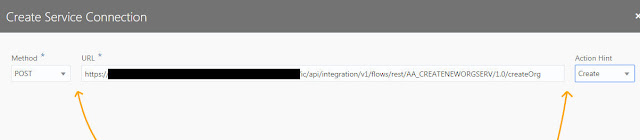
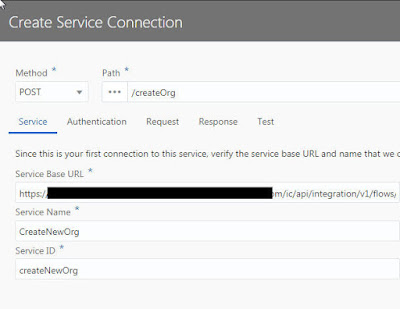


I can click Test, after specifying Request, Response and Authentication (if required)

Great, so now I have access to the Integration. I will leverage this later.
Business Objects -
Now I create a Business Object for the new organization I want to create -

I add fields -

Note the pre-defined fields -

Web Application -
Now to the app itself - I will create a web application


Note the hierarchy above -
on main-start, I will display the existing organizations I have created.
From there I will navigate to a new page - Create Org. I will call the integration from this page.
I select main-start and now drop a list view on to the page, which is open in the designer


Note the properties on the right - I open the Properties tabs

I click the QuickStart icon.
QuickStart does what it says - allowing me to quickly add data to the page.
As already stated, the Main page will simply list existing organizations.


As you can see from the screenshot above, I select the fields I want displayed.
Now I will add a page to create a new org - all I need to do is click Add Create Page


I can click on the Live tab to test the page -

looks good - so now I run the App - all I need to do is click the Run icon


All that's left is to add the call to my integration -
Again, we will be leveraging the Service Connection previously created.
In this simple example, I will call it explicitly via a Button clicked event -

As you can see, I have added the Call Integration button, now to the event definition -


I select the Call REST Endpoint option from the Actions list.
Configure as follows -

So what I am doing here?
I need to set the body of the REST request.
The request expects the following fields -
orgName
contactFirstName
contactLastName
Firstly, I create a very simple integration to create a new org in Service cloud.
The logic will be very simple - check first if the org already exists, if it does - call a fraud service:
otherwise create the org.


Note the new templates/styles.
I have a REST Trigger with the following payload -

The response is as follows -

BTW. one nice new feature - the ability to create a new connection, from within an orchestration.


Also note the new style action palette -

Back to the orchestration, very simple logic -


Visual Builder Cloud Service
Now to VB CS -
First step is to create an application.

I can create the following high level objects within an application -
Mobile UI
Web UI
Service Connections - to external services such as my integration
Business Objects - I will creating one of these for my Organization
Processes - OOTB integration with OIC Processes
Source Code View - for the js afficiandos among you
Service Connections -
I create a Service Connection to the Integration


I can click Test, after specifying Request, Response and Authentication (if required)

Great, so now I have access to the Integration. I will leverage this later.
Business Objects -
Now I create a Business Object for the new organization I want to create -

I add fields -

Note the pre-defined fields -

Web Application -
Now to the app itself - I will create a web application


Note the hierarchy above -
on main-start, I will display the existing organizations I have created.
From there I will navigate to a new page - Create Org. I will call the integration from this page.
I select main-start and now drop a list view on to the page, which is open in the designer


Note the properties on the right - I open the Properties tabs

I click the QuickStart icon.
QuickStart does what it says - allowing me to quickly add data to the page.
As already stated, the Main page will simply list existing organizations.


As you can see from the screenshot above, I select the fields I want displayed.
Now I will add a page to create a new org - all I need to do is click Add Create Page


I can click on the Live tab to test the page -

looks good - so now I run the App - all I need to do is click the Run icon


All that's left is to add the call to my integration -
Again, we will be leveraging the Service Connection previously created.
In this simple example, I will call it explicitly via a Button clicked event -

As you can see, I have added the Call Integration button, now to the event definition -


I select the Call REST Endpoint option from the Actions list.
Configure as follows -

So what I am doing here?
I need to set the body of the REST request.
The request expects the following fields -
orgName
contactFirstName
contactLastName
contactEmail
These are, of course, the fields I just entered on the Create page.
I can see these on the variables tab -


The notation for accessing them is as follows -

That's it, let's run the app again -


I check in Integration - Monitoring -
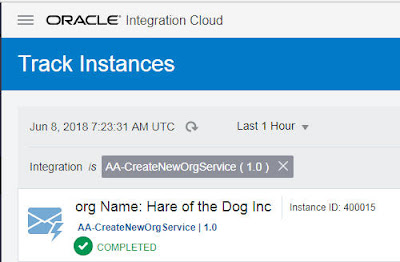
What about the result from the integration flow?
It is designed to call my dummy Fraud service hosted on Apiary.
This is the response I have hard coded in the integration -

I create a new text box in my VB CS Create Org page -
As you can see, I have set the label to
Response from Integration -

Now to processing the response - I need to do the following -
1. Define a page variable to hold the response
2. Define the response type at Action Chain Level
3. Set the page variable to the response (in this case, I just take the status field)
4. Set the text box value to the page variable
Define Page Variable -
I called mine responseStatus (String)


Define Response Type -

So where does this postCreateOrgServiceResponse come from?
Let's revisit the Service Connection definition -

Set the page variable to the response -
I use the Assign Variables action here


Set the text box value -
I address the variable as follows -
$page.variables.responseStatus

I run the app -


Great stuff!
These are, of course, the fields I just entered on the Create page.
I can see these on the variables tab -


The notation for accessing them is as follows -

That's it, let's run the app again -

I check in Integration - Monitoring -

What about the result from the integration flow?
It is designed to call my dummy Fraud service hosted on Apiary.
This is the response I have hard coded in the integration -

I create a new text box in my VB CS Create Org page -
As you can see, I have set the label to
Response from Integration -

Now to processing the response - I need to do the following -
1. Define a page variable to hold the response
2. Define the response type at Action Chain Level
3. Set the page variable to the response (in this case, I just take the status field)
4. Set the text box value to the page variable
Define Page Variable -
I called mine responseStatus (String)


Define Response Type -

So where does this postCreateOrgServiceResponse come from?
Let's revisit the Service Connection definition -

Set the page variable to the response -
I use the Assign Variables action here

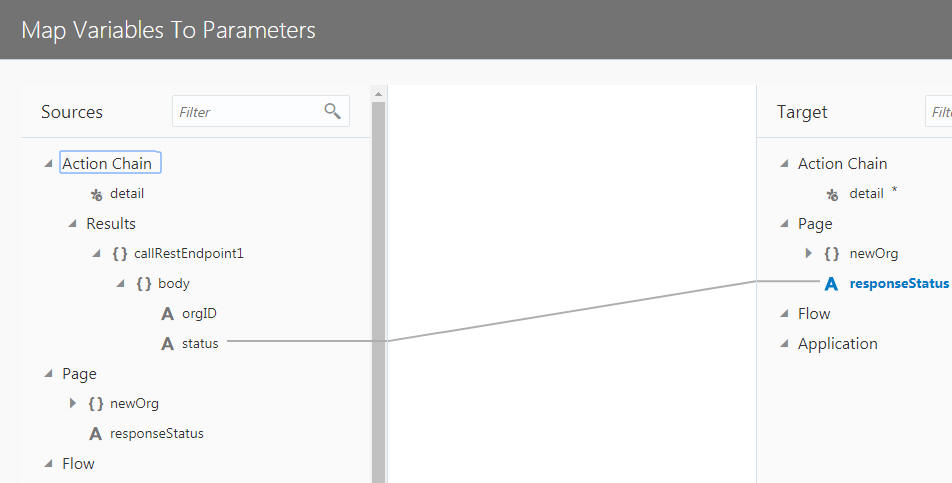
Set the text box value -
I address the variable as follows -
$page.variables.responseStatus

I run the app -


Great stuff!