Monday, September 14, 2015

#443 PCS --> Process Documentation & Reporting

There are a plethora of reports available -

I am using the following sample process to illustrate -


Process Reporting 


We will go thru these, one by one.
But before that, let's look at the documentation functionality offered by PCS.

We have documentation at process and activity level.

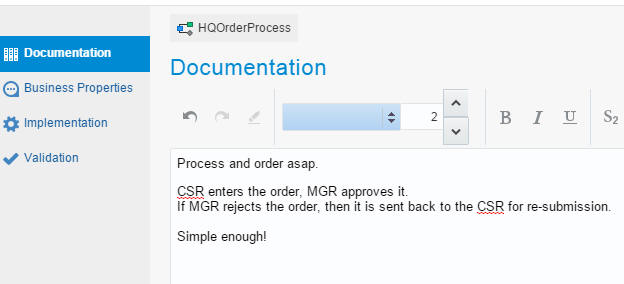
Process Level Documentation -


General- 


Requirements -


Activity Level Documentation -


General documentation tab -


Business Properties -


Here one can add -

1. Links - to websites, docs etc.


As you can see, I added one pointing to JavaScript tutorials on W3C.

Issues -
track design time issues


Comments -
used for design time collaboration.


RACI Support - 


Now to the human tasks -


Much the same as for the Start activity, except for RACI support -


Now, let's generate some reports...

Detailed Business Process Report


Process Requirements Report


Issues and Comments Report


Data Objects Report

List of the data objects used in the process.
Details which activities use data objects and what they do with them (Read/Write etc.)


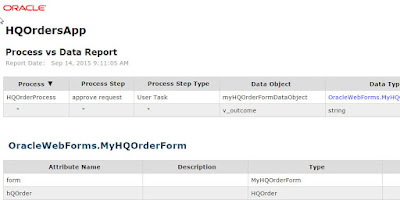
Process vs Data Report


A variation on the above -
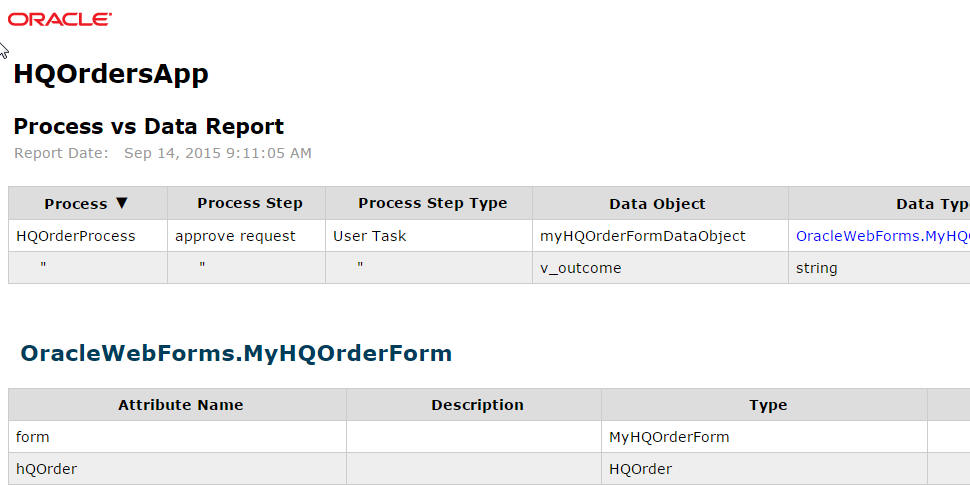


Data vs Process Report


Service vs Process Report


Currently I am not leveraging any services in my sample process.


User Task Report


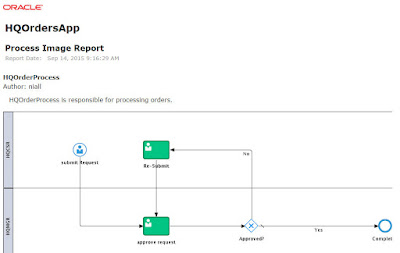
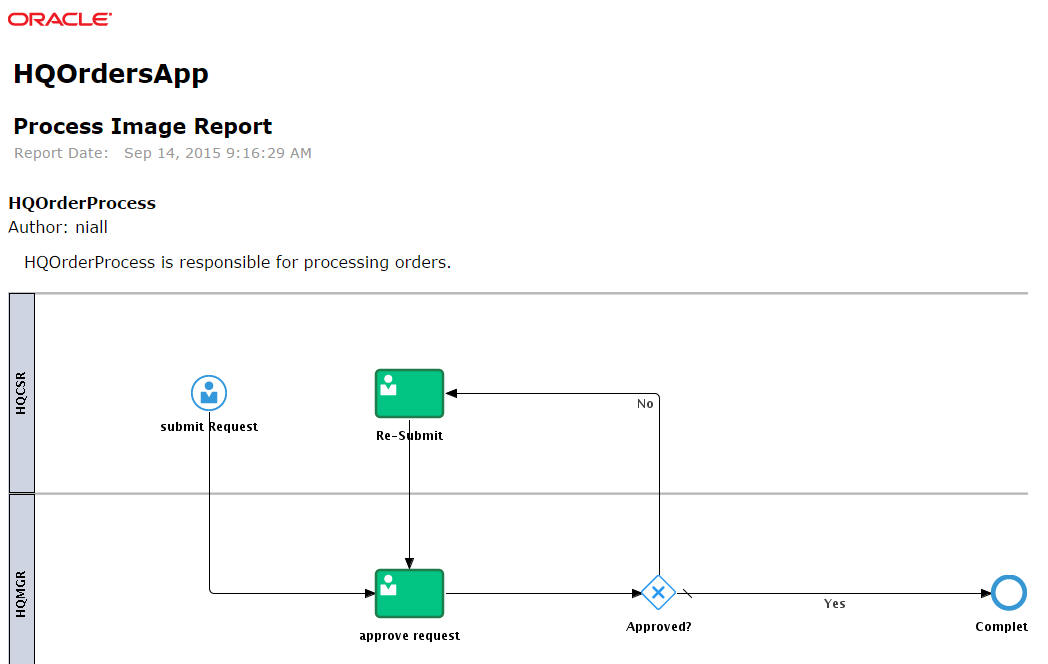
Process Image Report


RACI Report


#441 PCS --> Adding functionality to your Web Form (dynamic links)

As most you who are familiar with on-premise BPM know, web forms is one flavour of UI design time. In PCS it is the only one.

It is intuitive, easy to use and also quite powerful, although one needs a modicum of JavaScript knowledge.

Here is a simple example of adding a context sensitive link to Google Maps.
A big Gracias to my colleague Carlos C. for the example on which this post is based.

Here is my Form -


As you can see, it is my usual order form.

I have added a field of type "link" called CheckItOut.
This will give the user the opportunity to check out the customer's
address via Google Maps.


As you can see, it is invisible when the form is first rendered.
I only want it visible when a custStreetAddress has been entered.

Here is the rule -


I run and test -


I enter an order -

The CheckItOut link is now visible -


I click on it -


Thursday, September 10, 2015

#440 ICS --> Service Cloud Contact Synchronization with Marketing Cloud

Variation on the previous post -


I just created the highlighted Contact in Eloqua via ICS.

Here is the integration -


Ok, the picture is not very illuminating -

Here is the mapping -


OK, I have hard-coded the email - more on that later.

Here is my test payload in soap-ui


Simple!

full payload here

Regarding the email - I have to retrieve this separately -

Here is the result of the ROQL -
select Contact from Contact where Contact.ID=&cId


Now my Service Cloud Contact has the email set -


More later, on how to enrich the payload with the email.

Also, ROQL documentation here

Thursday, September 3, 2015

#439 ICS --> Sales Cloud 2 Marketing Cloud --> Contacts

A variation on the last post -

Here I want to sync contacts.

Here is the Integration -


Here is the Target configuration -


Here is the mapping -


I activate and test -


I check it out in Eloqua -


#438 ICS --> Sales Cloud 2 Marketing Cloud Integration --> Accounts

Even I was really impressed - development time of ca. 5 minutes.
Here I am syncing a Sales Cloud account with a Marketing Cloud account.

I created a couple of connections -


I create the Sales Cloud 2 Marketing Cloud Integration -


Here is my mapping -


I deploy and test from soap-ui

Here is the payload -


I add Username Token & Timestamp to this -


and test.

I then check in Eloqua (Marketing Cloud)


I now try and update - say the address has changed, as
The Hare of the Dog Inc. has gone upmarket to Brookwood Lawn.

I simply change the address in the soap-ui payload as follows -


I re-visit Eloqua and there it is - the new address.


So The Import operation I sepcified in the Eloqua adapter configuration
is more of an UPSERT.

5 minutes for dev & test -> took me much longer to write this blog post.


Tuesday, September 1, 2015

#437 Integration Cloud Service --> Syncing Sales Cloud Account 2 Service Cloud Organization

Here is a very simple example of the above.
I need to create a new organization in service cloud for each new sales account in sales
cloud.

Here are my connections -


Here is the integration -


I only map one field just to illustrate...


That's it - very simple, very fast.

I activate the integration -


I pick up the wsdl for testing via SOAP-UI -


Here is my payload -


I check in ICS Monitoring -


I check in Service Cloud -