Here is a quick overview of the new design time BPEL features -
I add my obquitous
xsd to the project -
Notice the new compents available -
- Subprocess -
A subprocess is a fragment of BPEL code that can be reused within a particular
processor by separate processes. The subprocess extension provides the following
benefits:
BPEL process code reusability, which reduces the need to create the same activities
multiple times to perform the same tasks.
Code modularity.
Code maintenance (changes are propagated, which eliminates the need to
implement updates in multiple places every time a change is necessary).
Less overhead than invoke activities.
Memory footprint reduction, which can be considerable in a complex process.
- Component Template -
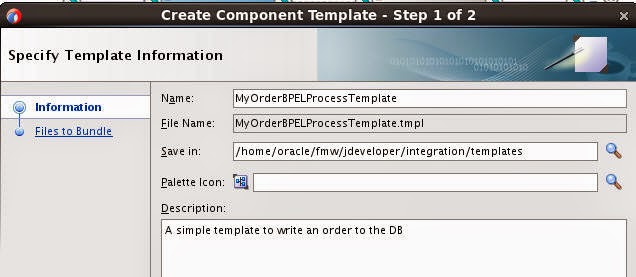
A template is a reusable part of an Oracle SOA Suite project that you can use to create new projects.
Creating a Subprocess
Here I create a subprocess that writes an order to my orders DB table.
I created this table on JavaDB using the folowing SQL -
CREATE
TABLE NCOrder
(Ordernr VARCHAR(10) NOT NULL
CONSTRAINT NCOrder_PK PRIMARY KEY, CustLastName VARCHAR(26),
CustFirstName VARCHAR(26),CustEMAIL
VARCHAR(26), Product VARCHAR(26),
Quantity INT, Price INT, OrderStatus
VARCHAR(10));
I add a db adapter to the composite. The sub process wil use this to write an order to the DB.
You can use the JNDI name /eis/DB/SOADemo this will save you having
to create a new entry under the DB adapter in the WLS console.
Wire up
Edit the sub-process - here are the available components -
Create a variable of type
Add the Invoke etc.
Now I create a new BPEL Process OrderProcess with an Order
as input and output.
I edit the process -
Notice the Sub-process is available in the Subprocesses/Standalone section.
I drag this into the process -
Edit the Call -
set the in_order value -
Assign input to output -
Test -
Deploy to the embedded WLS
Test via em
Check the DB -
Component Templates Demo
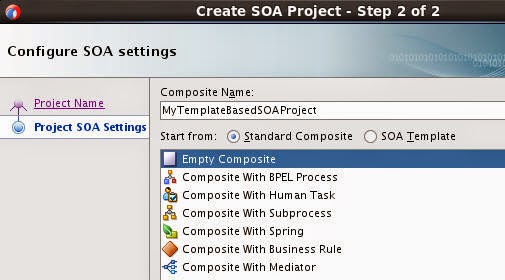
You can create a new project based on an existing template -
For example, you can click the plus icon and navigate to
/home/oracle/fmw/jdeveloper/integration/templates
In this case, we go for a component template - so just do the following -
Select Component Template -
Here is the result -