Tuesday, November 2, 2021

#889 Leveraging OCI AI Language Service from Oracle Integration


Language provides you with the artificial intelligence and machine learning capabilities to detect the language in your unstructured text. Also, it provides other tools to help you further gain insights about your text.

First, a simple example of what's possible here - I enter a text for analysis - This is my second order for this product, it is really cool.

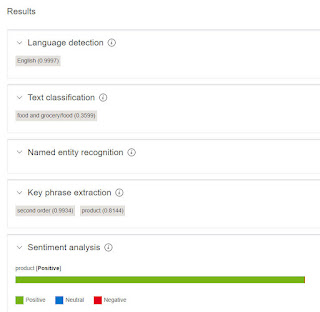


As you can see - a positive sentiment and rightly so our iBike is the best in the virtual world!
Now how can I invoke this from OIC? Imagine I have an order processing integration - the payload includes a comments field - where customer can open their hearts to us. Let's implement this in OIC.

Step 1 - create a connection to OCI AI Service

Invoking AI is just like invoking other OCI services from OIC. The connection setup is similar to that for Object Storage etc.

So I begin by cloning my existing Object Storage connection -


Naturally, I need to change the connection url - the AI url can be found here -


https://language.aiservice.us-phoenix-1.oci.oraclecloud.com

The Language API doc is here

All that I need to do now is fill out the missing details -


Step 2 - create an Integration to invoke the AI Service


Here are the request/response payloads for my REST based service -


There are a couple of APIS I can leverage here - 

e.g. DetectDominantLanguage - DetectLanguageSentiments


Let's go for the latter - the only payload required is a {text}


FYI - I copied the response json from the api documentation.

I now map the request comments to text an then activate / test -


So what does the result tell us?
Positive sentiment for the words product and bike.

Looks like a happy customer!

Let's try an unhappy customer - what would she write?


Only 1 "aspect" is returned for the word order. The happy customer comments resulted in 2 aspects - one for order and one for bike. So we can easily add a SWITCH to the integration and parse the sentiment(s) returned.


I set the integration Response as follows - 


I activate and test - 


Naturally, I could augment this scenario with an OIC Process which could be called for negative sentiments. A business user could read the comments and assuage the customer's fear - your order is not lost, in fact we are shipping it express to you. 


Tuesday, October 26, 2021

#888 Configuring OIC Notifications

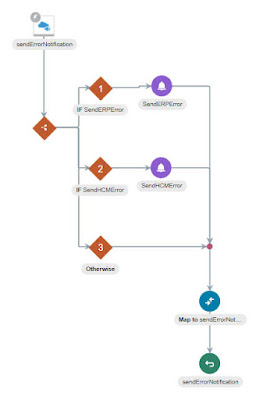
Simple scenario here - customer wants OIC to send context sensitive emails in case of error. So what do I actually mean by this? I have ERP and HCM related errors, each of these will result in the sending of a notification. However, the ERP related email should have its own sender email address, email formatting etc. The same applies to HCM - Here is a simple example of such emails  - 


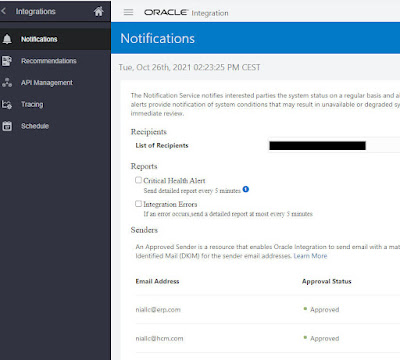
Note the 2 email addresses niallC@hcm.com and niallC@erp.com. These have been specified as valid email addresses in OIC - Settings - Integrations - Notifications - 

 
Now to the integration that will send the email. This will be part of your error handling framework.


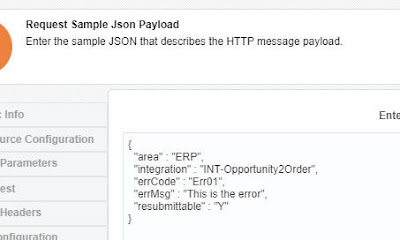
For this simple example I use the following request payload - 


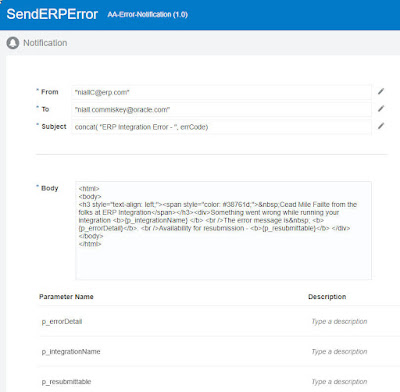
Let's look at the SendERP Error Notification configuration - 


Note the use of html for the LOB look and feel. Also note the use of Parameters. These are set to the relevant values from the Request.

Very simple!


Tuesday, October 19, 2021

#887 Leveraging Grafana for OIC Metrics

OCI Logging and OCI Logging Analytics are compelling offerings, but some folks may have standardised on other monitoring tools, such as Grafana.


So no time like the present to look at how one can leverage Grafana to monitor OIC Service Metrics. My colleague Valeria C. has already done great work in this area and has provided me with the impetus to get started. But first, I need Grafana!  

Step1 install Grafana on an OCI Compute instance.

Step 2 install the Grafana OCI Metrics plugin.

Step 3 monitor!

Install Grafana on OCI Compute instance

1. Spin up a compute instance
2. ssh into the instance
3. install Grafana - currently we need a version under v8.


wget https://dl.grafana.com/enterprise/release/grafana-enterprise-7.5.11-1.x86_64.rpm
sudo yum install grafana-enterprise-7.5.11-1.x86_64.rpm

4. Start Grafana - sudo systemctl start grafana-server

5. create ssh tunnel so you can open Grafana on your local browser - 
putty.exe -ssh opc@yourComputeIPAddress -i C:\path2yourPrivateKey\ssh-key-private.ppk -L 3000:localhost:3000 

6.  Open Grafana in your browser - http://localhost:3000
login as admin/admin. You will then be prompted to change your password.


Add OCI Dynamic Group and Policies

This is required to allow the vm to collect OCI metrics - 


Rule: All {instance.id = 'yourComputeOCID'}


allow dynamicgroup yourDynamicGroup to read metrics in tenancy
allow dynamicgroup yourDynamicGroup to read compartments in tenancy

Install the Grafana OCI Metrics plugin

I manually download the plugin -


directory is /var/lib/grafana/plugins
cmd is wget https://github.com/oracle/oci-grafana-plugin/releases/download/v2.2.3/plugin.tar

create a directory and install -

sudo mkdir oci && sudo tar -C oci -xvf plugin.tar

Edit grafana.ini - adding the following - 


4. re-start Grafana
6. Open your browser - and go to Data sources. Here we configure the connection to OCI


Now I can start building a dashboard - 

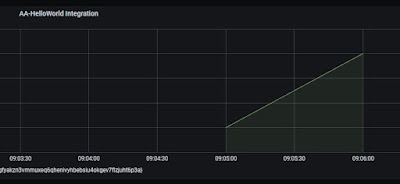
I check out what's happening with my Hello World integration - 


 I also add a panel showing all integration messages etc. etc.

Net, net - very easy to configure and use. However, I still favour OCI Logging and OCI Logging Analytics. With them we have OOTB access to the OIC Activity Stream logs as well as the ability to create similar dashboards on top of the OIC Service Metrics.

Thursday, October 14, 2021

#886 Using OIC Logging Analytics for searching OIC Activity Stream log

 The OCI Logging Analytics version of post #884


So my OIC Activity Stream data is available in OCI Logging Analytics. Now I need to see what happened to order nr 2009. That order has been processed by OIC - 


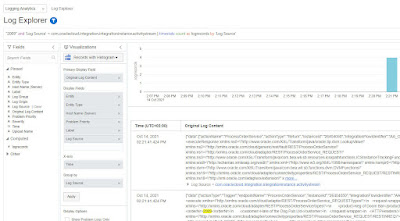
Now over to OCI Logging Analytics - I just add "2009" to the query text box - 


So let's take this from the beginning - in Log Explorer - 


I then select the OIC Activity Stream Log - 


I then add the "2009" to the query - and see the order -