OIC is great for connecting apps, but also for extending apps. I have already written about OIC based extensions for Fusion Apps, but today, I'm looking at Oracle Hospitality aka Opera Cloud.
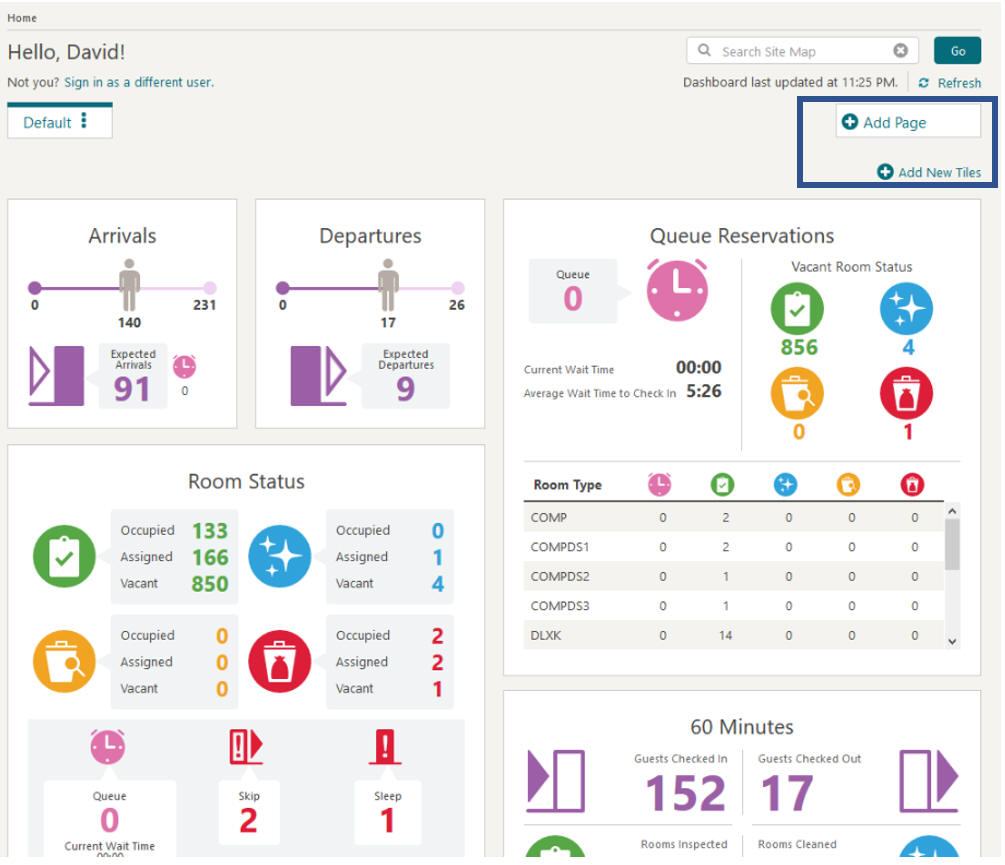
The above screenshot shows a typical home page - all salient data to hand. You may also notice, at least I hope you do, the blue rectangle I added top right. This highlights one form of Opera extension functionality - the ability to add new pages and tiles to those pages. Think of a tile as providing some discrete functionality such as a list of room types etc. More about this later, but here's a teaser -
Now to the actual extension use case - moving a reservation from one hotel to another - the there is no room at the inn scenario - hence the Move Reservation tile above. The rules are as follows - casual guests (non-loyalty members) can be moved without management approval. Loyalty members, our platinum guests, can only be moved after the hotel manager has approved.
I use multiple OIC components to implement this extension -
Visual Builder - here I build the UI that will allow users to move reservations from one hotel to another. I will "embed" the Visual Builder UI via Opera Tiles.
Integration - OIC Integration is used to retrieve and update data in Opera, via the OIC OHIP Adapter.
Process - OIC Process is used for the loyalty members approval workflow. Here is where the manager can approve or reject proposed moves of high value guests.
Creating the User Interface with Visual Builder
Please note: this is a quick demo - so the UI will be greatly simplified.
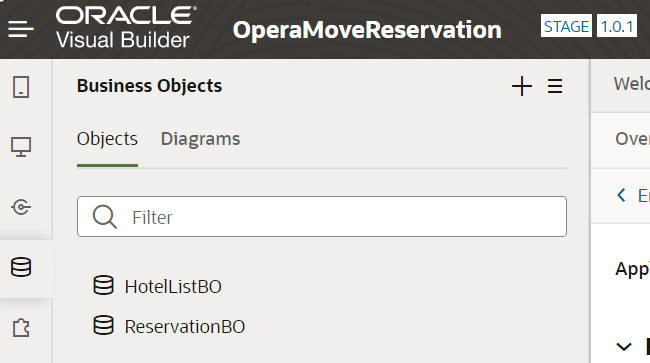
I create a new app in Visual Builder - adding a couple of Business Objects -
Very simple here - one business object for reservations and one with a list of hotels. The relevant data from Opera can be pushed to these business objects via OIC integrations.
Here is the flow -
Note the info message I surface - Approval Required - this refers to an OIC Process instance that has been instantiated to approve the move of our platinum guest.
Creating the Integrations with OIC Integrations
Here is the integration invoked from the Move Reservations app, when the Save button is pressed -
The flow is simple - the request payload contains the salient reservation/guest details. The CheckMemberStatus scope include actions to retrieve guest loyalty membership details from Opera.
We then have the Branch, based on whether the guest is an elite member. Here the integration invokes the ReservationMoveApproval process.
A further integration updates the Reservation in Opera, based on the manager's decision, i.e. if the move is approved then update the reservation to reflect the new location.
Creating the Move Approval Process in OIC Process
Again, this is a very simple implementation -
Back to the Demo...
In the UI, I have moved our platinum guest - Niall Mac Cumascaigh - from the Majestic Hotel to the Hollybrook Hotel.
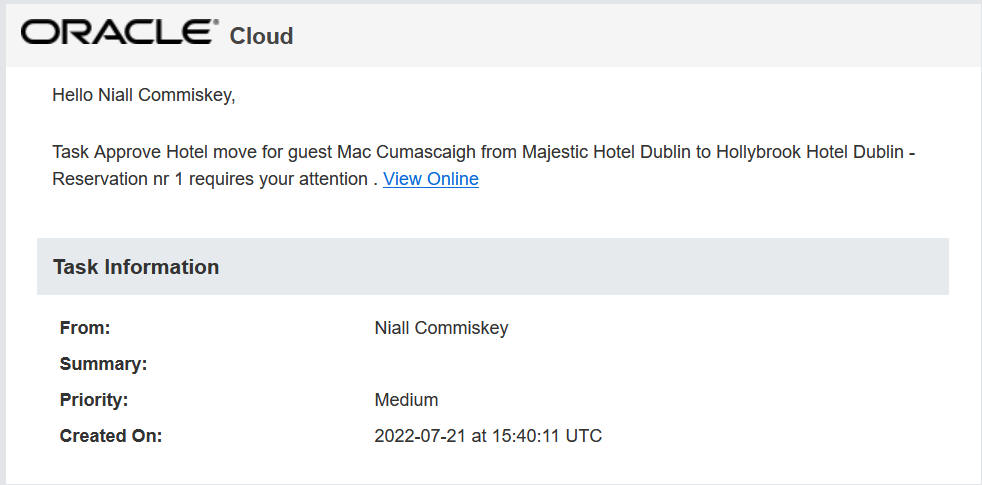
The hotel manager receives the following email - informing her of the proposed move.
OIC Process comes with its own Worklist app, where approvers can process their tasks -
I click on the task to see the details -
Here the manager can approve or reject the move. She can also add comments to this instance, attach supporting documentation, if that was relevant. She can also execute the following actions on the task -
Now this UI is great, however, we can replicate this in Visual Builder -
VB makes it very easy to surface process tasks -
Add Data allows me to select Process Tasks -
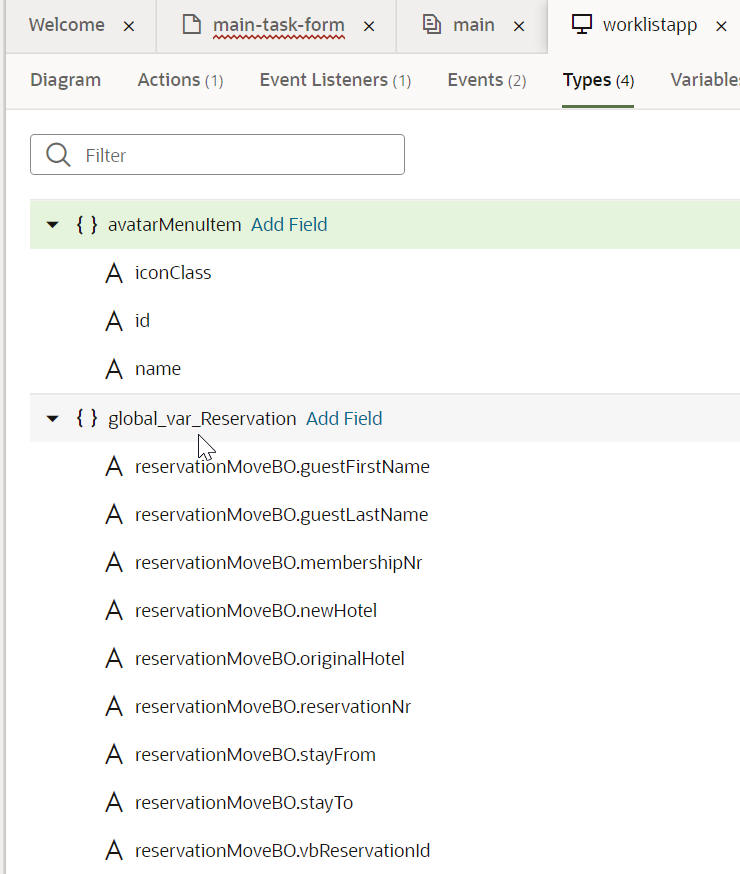
This will show all tasks assigned to me, which could include others besides Move Approvals. I can filter the tasks shown by adding the following parameter to the auto-generated taskListPDP file -
Enough of the internals - back to the demo - selecting Approve and clicking Submit will cause the OIC Process to continue. As the move has been approved, the next step of the process is to invoke an integration which updates Opera and the Move Reservations app -
Opera User Access to the Visual Builder Apps
For this quick POC, I simply chose the anonymous option to allow the Opera user transparent access to the Visual Builder apps.
This requires checking some boxes at different levels in Visual Builder -
1. Anonymous access to the app itself -
Select the app in the tree - and then click on Security -
check the following -
2. Anonymous access to the Business Objects -
Firstly - for each Business Object - activate role based security and set as follows -
Secondly, click on the Settings menu option on the right -
3. Anonymous access to services i.e. the integrations called by the vb app -
Click the edit icon on the right -
I check the box to allow anonymous access to the OIC integration, however, I need to specify the authentication to be used by such users. My integration has a REST trigger with Basic Auth, therefore I choose Basic here and configure with my integration username /pwd. Naturally, other options are available - OAuth etc.
That's it - All I need to do now is Stage the app -
and get the url -
https://myOICInstance/ic/builder/rt/OperaMoveReservation/1.0.1/webApps/operamovereservation/
and test this in an incognito window -
Invoking the MoveReservation App from Opera
As I mentioned at the outset, Opera allows us to add tiles to our home page. Opera includes a list of ready to use tiles such as - Arrivals, Departures, Room Types etc. There is also one called Custom, this is the one we will use.
Now to configure the custom tile - I click Setup -
This Link will be configured with the VB app url.
The result -
I click on Open Move Reservation -
Very simple - very succinct!
There are many ways to skin a cat, as we say in Ireland - speaking metaphorically of course. We can also configure pages in Opera, for example - the Reservation Overview page - here I simply add a link to the page -